![ProTop-helpnb.png]](https://help.wss.com/hs-fs/hubfs/ProTop-helpnb.png?height=39&name=ProTop-helpnb.png)
Open PuTTY on your Windows desktop.
Select Session on left.
Select "Default Settings".
Click the Load button on the right: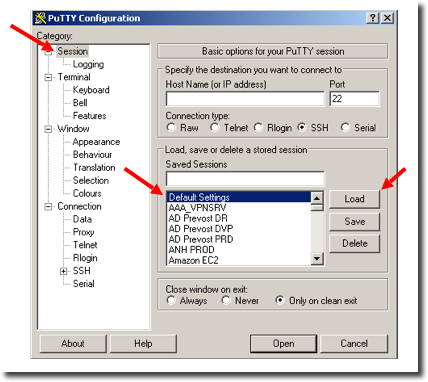
Now select Window on the left.
Set Columns to 160 and Rows to 48: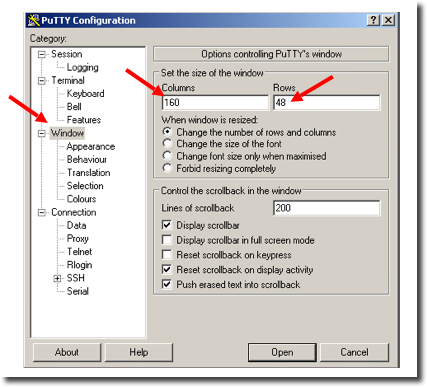
Now select Appearance on the left.
Click the Font settings Change button on the right.
Select Consolas for the font, Regular for the Font Style and 9 for Size: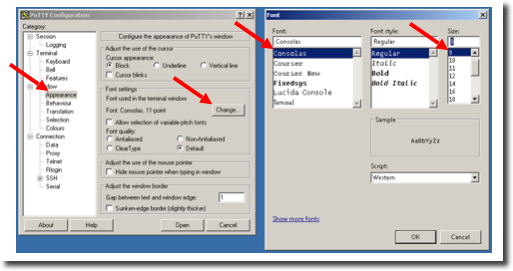
Next, select Translation on the left and choose a Remote Character set. UTF-8 is common on Linux these days, but you might see poor line drawing. You might so also try one of the ISO-8859-1 variants. If you are going to use UTF-8 be sure to check the "Enable VT100 line drawing even in UTF-8 mode" box: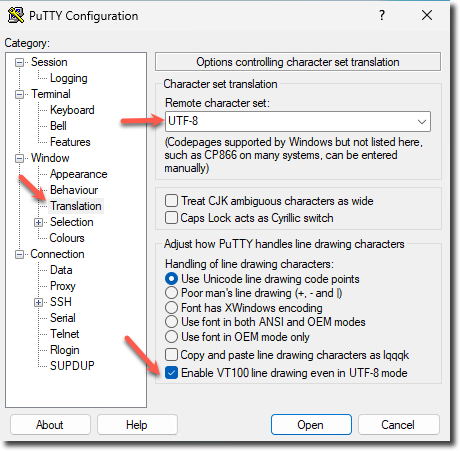
Select Terminal then Keyboard on the left. Set The Backspace key to Control-H, and The Function keys and keypad to Xterm R6: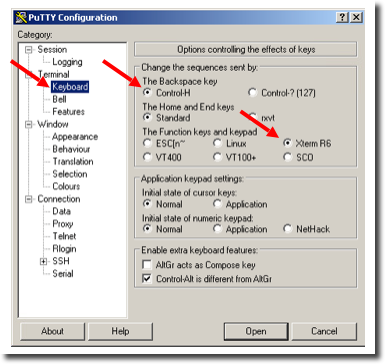
OPTIONAL: Select Window on the left, then Colors, and set them to your heart's desire. We suggest you stick with defaults until you've got everything working with ProTop then you can tweak as you see fit: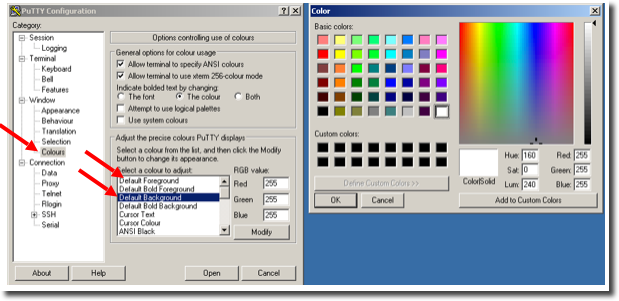
Now save these values as your Default Settings, in your Saved Sessions: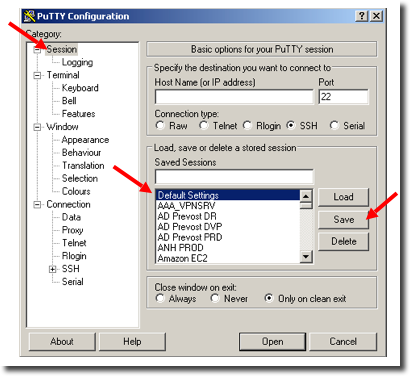
Now you can use this as base for connections to specific servers. To do that, load the default settings. Provide a Host Name or IP Address, give it a name in the Saved Sessions field, clikc save, and you can load that profile in the future and it will work well with ProTop.